Showing posts with label Facebook. Show all posts

Friday, November 25, 2016

How to Change Your Facebook Profile Name


How to Change Your Facebook Profile Name


Facebook is most highly traffic social website. If you change your Facebook Profile Name in your Facebook account then you can change your name in your Fabcebook Profile Name in some easy steps. Many peoples want to change their Facebook profile name in their own Profile. There are so many reasons for changing the name in Facebook Profile like, After the marriage, change for make fun with funny name and change to nick names etc.,



If you want to change Facebook profile name then first of all you know some condition its provide by Facebook.


1.    you can change your porfile name after 60 days if you have changed already.
2.    You can not change more than 5 times.

3.    You can not use special character and number in your name.


How to Change Your Facebook Profile Name


Step 1. First of all you go to the Facebook website : www.facebook.com . Then login with your Username and Password.


Step 2. After login of Faceboo Account then click on Dropdown Button and show Setting Button Below and click on Setting.


Step 3. After clicking on Setting Button open a page then Select General Tab and Click on Edit Option in front of the Name.


Step 4. Just clicking on Edit Button open page with blank option for fill up and fill in the blank your name which you want to change.


           ➤ Fill the First, Middle and Last Name. (Middle is optional).

        ➤ Fill the the current password in the below box.                                 
     ➤Finally click on Review Change.

          Now your Facebook Profile name will be changed.


Now you must have understood how to change your Facebook Profile name in this article and you can easily change Facebook Profile name with the help of upper given steps. If you face any problem regarding change Facebook profile name then you follow upper step and kindly help you for change of Facebook profile name.  If any problem face by given ways then direct connect with me by comment box.


Read More

How to Delete Facebook Account for Permanently


How to Delete Facebook Account for Permanently

Hello my dear friends. We know that Facebook is popular social website where more and more peoples visit. Today, i am going to tell you about how to delete facebook account. You will know that Fake Facebook account is more than Original Facebook Account. Sometimes we create fake facebook account to harass the people and forget its after some times and also forget to delete it. Must have delete this type fake account for your better because this is cyber crime. If you have deleted your Facebook account and after that you can cancel it before 14 days and after 14 days this account will be deleted permanently.


How to Delete Facebook Account for Permanently.


If you want to delete your Facebook account permanently then you follow the below steps.


Step 1. First of all you go to the Facebook website : www.facebook.com . Then login with your Username and Password which you want to delete parmanently.


Step 2. Visit this link and open a Pup-up window and Click on My Delete Account.


Step 3. After Clicking on My Delete Account Open a Page and Ask Facebook current Password and fill the CAPTCHA and Click on Okay. And your Facebook Account will deleted permanently after 14th days.


Now you must have understood how to delete your Facebook account in this article and you can easily delete Facebook delete with the help of upper given steps. If you face any problem regarding delete Facebook account then you follow upper step and kindly help you for delete of Facebook Account.  If any problem face by given ways then direct connect with me by comment box.


Read More

Tuesday, November 22, 2016

How To Change Password of Facebook Account.

How To Change Password of Facebook Account.

Hello my Dear Friends, Today's i am going to tell you how to change password of Facebook Account. If you want to safe your Facebook Account then you will be changed your Facebook Password per month. In such your Facebook Account will be secure. And we will know that how to change Facebook Password. If you want to change your Facebook Password the follow below steps :


How To Change Password of Facebook Account.


Step 1. First of all you go to the Facebook website : www.facebook.com . Then login with your Username and Password.


Step 2. After login of Facebook Account then click on Drop down Button and show Setting Button Below and click on Setting.


Step 3. After clicking on Setting Button open a page then Select General Tab and Click on Password Edit Option. 


Step 4. After Clicking on Password Edit and open a page for change of Facebook Account. Fill the current Facebook Password in Current Password (Old Password) Its you use in present. For Change New Password fill the New Box and After that Re-type New Password and Click on Save Changes.


>> Current Password (Old Password)

>>New (Which you have new password)

>>Re-type New (Type Same New Password)


Dear my friends, If you want to change your password of Facebook Account the Follow Upper Step and Easily you can change your password.

Now you must have understood how to change password of Facebook account in the this article and you can easily change Facebook Account password. If you face any problem regarding change Facebook Account password then you follow upper step and kindly help you to change Facebook Password. If any problem face by given ways then direct connect with me by comment box.
Read More

How To Make Facebook Account

How To Make Facebook Account

Hello my Dear Friends, I will tell about how to make Facebook Account on Facebook. In today's age which is not Facebook Account its means who is belong to Old Fashioned. We know that Facebook provides a nice destination where we connect with friends with each other and passed comment and liked here and also provide chatting and calling process online without of cost.


What is Facebook.

Facebook is a social site where more and more peoples visit here and publish your unique ideas and get lots of comment by people. Here people is connected with one other. This is great platform for the make a new friends and chatting and calling with her without of cost. Here you can explore and expand their business information for the grow your business and also create a new page for your same professions.


How To Make Facebook Account Tips :


Step 1. First of all you go to the Facebook website : www.facebook.com


Step 2. Open a page with registration from for fill in the blanks with your correct information such as : 

1. Your First Name and Last Name 

2. Email Id Or Mobile Number

3.  Re-enter your Email Id or Mobile Numer

4. New Password

5. Birthday

6. Select your Gender Category : Male/Female


After fill the form with your correct information then click on the button of Sign Up.


Step 3. After clicking on the Sign Up Button and you get a mail with a verification code in same Email id which you provide at the time. Verification code will be verified your Facebook Account.


Now you must have understood how to create Facebook account in the this article and you can easily create Facebook Account. If you face any problem regarding create a new Facebook Account then you follow upper step and kindly help you for creation of New Facebook Account.

In so many ways I mentioned above so that you can create your Facebook Account. If any problem face by given ways then direct connect with me by comment box.


Read More

Saturday, November 19, 2016

How To Unblock Facebook Friends By Mobile.


How To Unblock Facebook Friends By Mobile.
When you block your Facebook Friends, the blocked friends is unable to view posts by you, post on your page, and cannot send again you friend request. This is a two-way boundary which means that you can not also view post given by your blocked friends.


If you want to unblocked Facebook friends, First of all Open Facebook App and login with your username and password. We know that sometimes some known friends blocked our Facebook friend list by mistake. To unblocked known Facebook friends list flow the given below step. 


Step 1. First of all open Facebook App and Login with your username and password.
 

Step 2.
 After login click on three line such as sign of More Button then open a list and click on Account Setting. 
 

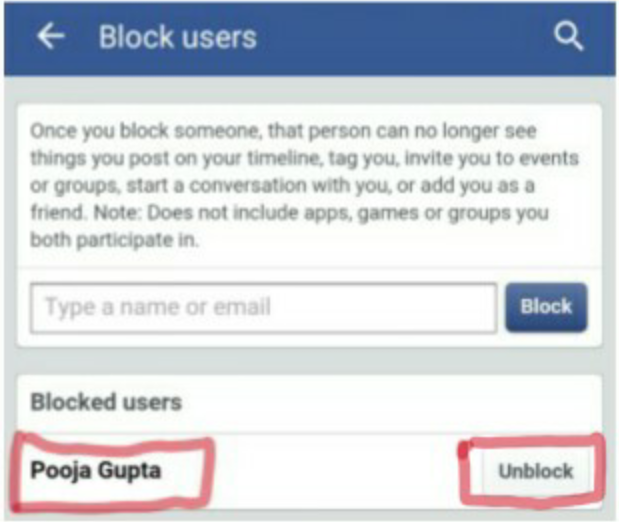
Step 3. After clicking on Account setting then click on Blocking. Now open a Block User Page with a list of blocked friends and If you want to unblock them which you know her/his. And click on Unblocked button.
 

Step 4. After clicking on Unblock button then open a page and Same click on Unblock Button.


Step 5. After unblocked get a message : you unblocked your friend Name.


           ➤ How To Unblock Facebook Friends by Computer.
           ➤ How to Block Facebook Friends by Mobile.
            
In so many ways I mentioned above so that you can Unblock your Facebook friends list. If any problem face by given ways then direct connect with me by comment box.
Read More

How to Block Facebook Friends by Mobile.


How to Block Facebook Friends by Mobile.


Trying to be Popular on Facebook to be something wrong in our Facebook Friend List. Because Add wrong person here by mistake. More and more fake profile on Facebook its harraass the people . And share abusive message and photos tag with your profile and also commented in abusive language. If same thing happen with you and your are harrass this type problem then you will be blocked them from your Facebook friends list. If you have done mistake and add unwanted person in your Facebook friends list then if you want to block them.


Facebook consists of two Type id on Facebook. The one genuine id which is make friendships and the other one Fake id which is disturbing to people. Some of Fake Facebook account to work as hacker and want to know your password. But there is no need to fear.


How to block facebook friends by Mobile.


Facebook is used more on computers as well as mobile. So We teach about both Devises to block Facebook friends list. First of all how to block Facebook friends by Mobile.


If you want to blocked Facebook friends, First of all Open Facebook App and login with your username and password. We know that sometimes some unknown friends add our facebook friend list by mistake. To blocked unknown facebook friends list flow the give below list.


Step 1. First of all open Facebook App and Login with your username and password.
 

Step 2. After login click on three line such as sign of More Button then open a list and click on Account Setting.


Step 3. After clicking on Account setting then click on Blocking. 


Step 4. Now open a Block User Page and If you want to block them type by Name or Email Id your unknown friends.


Step 5. After type name and click on Block Button open a list with lots of same name but you will be chosen a name which you block his/her.


Step 6. After select a name then click on block and show a massage and ask for that are you sure you want to block your friend name. Then click on Block for confirming.


Step 7. After clicking on Block Button then get your response and blocked unknown facebook friends in your Facebook friends list and see below photo.


           ➤ How To Unblock Facebook Friends By Mobile


In so many ways I mentioned above so that you can Block your Facebook friends list. If any problem face by given ways then direct connect with me by comment box.
Read More

How to Block Facebook Friends by Computer ?

How to Block Facebook Friends by Computer ?


Trying to be Popular on Facebook to be something wrong in our Facebook Friend List. Because Add wrong person here by mistake. More and more fake profile on Facebook its harass the people . And share abusive message and photos tag with your profile and also commented in abusive language. If same thing happen with you and your are harass this type problem then you will be blocked them from your Facebook friends list. If you have done mistake and add unwanted person in your Facebook friends list then if you want to block them.


Facebook consists of two Type id on Facebook. The one genuine id which is make friendships and the other one Fake id which is disturbing to people. Some of Fake Facebook account to work as hacker and want to know your password. But there is no need to fear.


How to block Facebook friends.
Facebook is used more on computers as well as mobile. So We teach about both Devises to block Facebook friends list. First of all how to block Facebook friends by Computer.


How to block Facebook friends by Computer.

Step 1. First of all Open Facebook Home Page and login with your E-mail Id or Phone Number and Password.


Step 2. Which is to block profile from your Facebook friends then right-click on Facebook profile then show Three Dots (...) . Three dots follow More Option. Then Click on three dots(...) just show block option and click on block.


Step 3. After clicking on blocking then open a page where your search your unknown friends to block from your Facebook friends list and you can search by name or Email Id to type in given box. If you want to block her unknown friends the type your unknown friend and click on block bottom.


Step 4. After clicking on Block Button a same type of name list which you search by name after that you choose the name for purpose of block and then click on chosen your unknown friends.
Step 5. As soon as block the profile, will be opened a pup-up window. Then click on Block Button for confirm and unwanted Facebook friends will be unlisted from your Facebook friends list.


Step 6. Finally Get a window open with your unknown friends which you remove from your Facebook friends list and Click on Block for confirmation. 


           ➤ How To Unblock Facebook Friends By Mobile
           ➤ How to Block Facebook Friends by Mobile


In so many ways I mentioned above so that you can Block your Facebook friends list. If any problem face by given ways then direct connect with me by comment box.


Read More